The Hidden Reason Your Wi-Fi Is Slow: Smart Home Device Count
Most households think their network problem is internet speed. It's actually 75 Wi-Fi devices fighting for airtime on a router built for 30. Here's how to fix it.
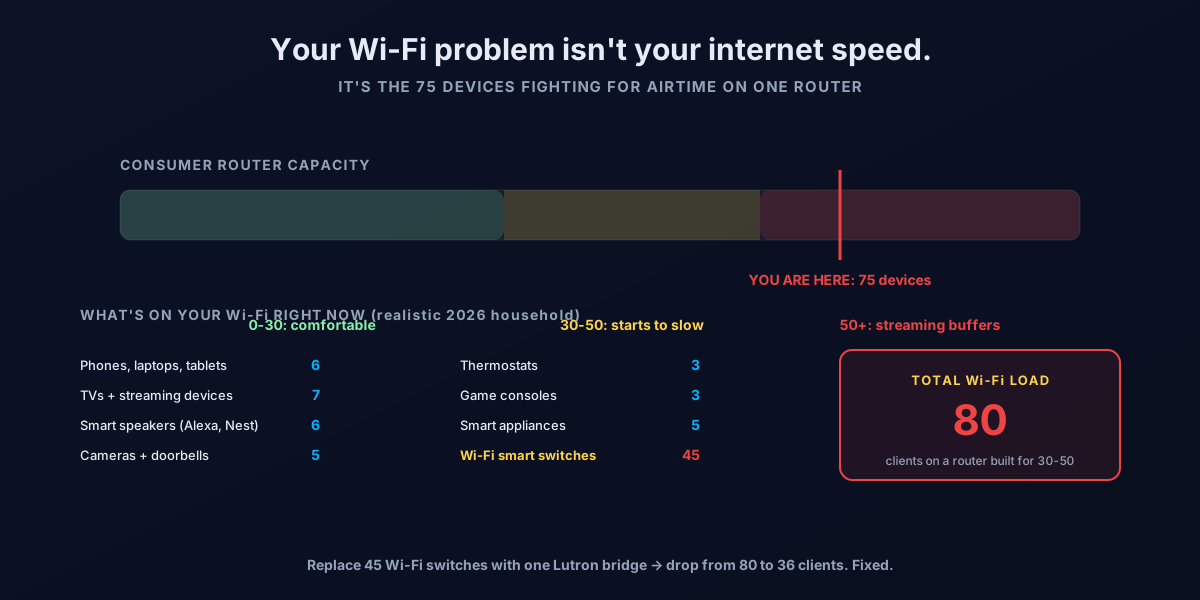
The hidden problem
A client calls us. "I'm paying $90 a month for gigabit fiber and my daughter's Netflix is buffering every night. Did Verizon do something to my service?"
We run the speed test. 940 Mbps down, 880 Mbps up at the router. The ISP is delivering.
We run the speed test in the kid's room. 320 Mbps over Wi-Fi 6. Plenty.
We open the router admin and count the connected Wi-Fi clients.
Eighty-three.
That's the moment the customer always says the same thing: "Wait — that many things are on my Wi-Fi?"
After 28 years of installing residential AV and 44 years of my dad in the cable industry watching network problems from the other side, we can tell you with confidence: the number one cause of "slow Wi-Fi" in 2026 isn't your internet speed. It's that you bought into the smart home one device at a time and never noticed the router was now juggling more clients than it was ever designed for.
This is the diagnostic guide for that problem.
Why every Wi-Fi device matters (even when it's idle)
The intuition most people have: "If my Echo Dot isn't actively playing music, it's not using the network, right?"
Wrong. Here's what actually happens behind the scenes:
Every Wi-Fi client occupies airtime. Wi-Fi is a half-duplex shared medium — only one device on a given channel can transmit at a time. Even an idle device sends "keepalive" packets every few seconds so the router doesn't drop it. Each one of those packets consumes a tiny slice of airtime. With 30 devices, the overhead is invisible. With 80 devices, that overhead becomes a measurable percentage of total available airtime.
Every Wi-Fi client occupies router CPU. The router has to track each client's IP address, MAC address, encryption keys, QoS state, and connection health. The CPU in a typical $200 consumer router is sized to handle 50-75 clients before it starts dropping packets. The CPU in a 2017 $80 router was sized for 30.
Every Wi-Fi client occupies channel space. Wi-Fi 6 introduced OFDMA, which helps a lot, but it doesn't eliminate the cost. Wi-Fi 5 and earlier (still in many homes) get hit hardest.
Every Wi-Fi client adds management traffic. Authentication handshakes, DHCP renewals, mDNS broadcasts ("Hey, I'm a Chromecast!"), beacon frames — all of that scales linearly with client count.
The net result: a router that handles 30 devices smoothly handles 60 devices unevenly and 90 devices badly. Streaming gets the worst of it because it's bursty and bandwidth-sensitive.
🛠️ The line we say to clients: "Every Wi-Fi device you add is one more chair at the dinner table. The router is the host. At 30 chairs, the conversation flows. At 80, everyone is yelling and nobody hears anything."
The smart-home explosion — why this is a 2024-2026 phenomenon
If you bought your house in 2018 and didn't change anything about your network, this problem snuck up on you. Here's the typical timeline we see in client homes:
2018: Router + 6 family devices + 3 TVs + 2 Alexa Echoes + Nest thermostat. Total: ~15 Wi-Fi devices. Network is fine.
2020 (pandemic): Added Ring doorbell, 2 Nest cameras, smart locks, 2 more Echo Dots for the kids working from home. Total: ~22 Wi-Fi devices. Network is mostly fine.
2022: Added robot vacuum, smart fridge (the new one came with Wi-Fi), 4 Kasa smart plugs for the holiday lights, smart sprinkler system. Total: ~30 Wi-Fi devices. Starting to feel sluggish.
2024: Got really into smart lighting. 15 Kasa switches around the house. Then 10 more. Smart garage door opener. EV charger that connects to Wi-Fi. Total: ~60 Wi-Fi devices. Buffering starts.
2026 (today): Added 20 more Kasa switches, 4 more smart speakers, replaced both kids' phones, bought an Apple Vision Pro. Total: ~85 Wi-Fi devices. Netflix buffers nightly. Voice assistants get sluggish. Video calls pixelate.
The customer thinks they need faster internet. They don't. They need fewer Wi-Fi devices on the same router.
The realistic 2026 device breakdown for a family of four in a smart home:
| Category | Typical count |
|---|---|
| Phones, laptops, tablets | 6-10 |
| TVs + dedicated streaming devices | 4-8 |
| Smart speakers (Alexa, Nest, HomePod) | 4-8 |
| Cameras + doorbells | 3-6 |
| Thermostats | 2-4 |
| Game consoles | 1-3 |
| Smart appliances (fridge, washer, dryer, oven) | 3-6 |
| Wi-Fi smart switches / plugs (the silent killer) | 20-50 |
| Smart locks, garage door openers, sprinklers | 3-6 |
| Robot vacuums, mops, lawn mowers | 1-3 |
| Wearables, kids' devices, miscellaneous | 5-10 |
| Realistic total | 52-104 |
That's not a hypothetical. That's the device count we measure in real client homes in 2026.
The protocols that don't use Wi-Fi (and why they're the fix)
This is the single most important concept in this guide. Not every smart device has to be on Wi-Fi. Many of the smartest categories — lighting, sensors, locks, blinds — work better on dedicated low-power protocols that bypass your Wi-Fi entirely.
Zigbee
Zigbee is a low-power mesh protocol on 2.4 GHz (different band from Wi-Fi data) used by Philips Hue, Aqara sensors, IKEA Tradfri, SmartThings devices, and many others. A single Hue bridge supports up to 50 bulbs. That's 50 lights on one Wi-Fi client (the bridge) instead of 50.
On your router: 1 device per bridge.
Z-Wave
Z-Wave is similar to Zigbee but operates in the sub-GHz band (around 908 MHz in the US), which means less interference with Wi-Fi or any other home device. Used by many smart locks, sensors, and switches sold through SmartThings and Hubitat. Requires a Z-Wave hub.
On your router: 1 device per hub.
Thread / Matter
Thread is the new low-power mesh protocol designed for smart home, and Matter is the application-layer standard that runs on top of it (plus Wi-Fi and Ethernet for some devices). Matter-over-Thread devices form a self-healing mesh that doesn't touch your Wi-Fi at all. A Thread Border Router (built into newer Apple HomePods, Google Nest hubs, eero mesh routers, Aqara hubs) bridges Thread to your home network.
On your router: 1 device (the Border Router, often already a router or speaker you own).
This is the future of smart home. Apple, Google, Amazon, and Samsung all back it. Almost every new smart-home product launched in 2025+ supports Matter.
Clear Connect (Lutron's proprietary RF)
The protocol Lutron Caseta uses. Already covered in detail in our Lutron vs Kasa guide. One Smart Bridge on Wi-Fi, every switch on Clear Connect.
On your router: 1 device. Forever. Regardless of switch count.
The protocol comparison
| Protocol | Band | Typical use | Wi-Fi clients added |
|---|---|---|---|
| Wi-Fi (direct) | 2.4 / 5 / 6 GHz | Anything | 1 per device |
| Zigbee | 2.4 GHz (different from Wi-Fi data) | Lighting (Hue), sensors | 1 per hub |
| Z-Wave | 908 MHz (US) | Locks, switches, sensors | 1 per hub |
| Thread / Matter | 2.4 GHz mesh | New 2024+ smart home | 1 per Border Router (often already your speaker / mesh node) |
| Clear Connect | ~434 MHz | Lutron Caseta lighting | 1 per bridge |
The math is brutal but simple: every protocol on this list except Wi-Fi takes N devices and puts 1 device on your router. That's how you go from 80 Wi-Fi clients to 36 in a single afternoon.
[Sources: Connectivity Standards Alliance (csa-iot.org), Philips Hue technical docs, Apple HomeKit / Matter documentation, Z-Wave Alliance specs.]
The retrofit strategy — how to consolidate
If you're already past 50 Wi-Fi devices, here's the install order we use in client homes:
Step 1: Replace Wi-Fi smart switches with Lutron Caseta or Z-Wave
This is the single highest-impact fix. If you have 20-45 Kasa or other Wi-Fi smart switches, rip them out and replace with Lutron Caseta + a Lutron Smart Bridge.
- 45 Wi-Fi switches removed: -45 Wi-Fi clients
- 1 Lutron Smart Bridge added: +1 Wi-Fi client
- Net: -44 Wi-Fi clients
That fix alone takes most "too many devices" houses from broken back to comfortable. See our Lutron vs Kasa deep dive for the full case.
Step 2: Consolidate smart bulbs to a Hue bridge
If you have a mix of Wi-Fi bulbs (LIFX, TP-Link Kasa bulbs, off-brand Amazon bulbs), replace them with Philips Hue + a Hue Bridge. One Hue Bridge supports 50 bulbs on Zigbee. That's potentially 50 Wi-Fi clients consolidated to one.
- 30 Wi-Fi bulbs removed: -30 Wi-Fi clients
- 1 Hue Bridge added: +1 Wi-Fi client
- Net: -29 Wi-Fi clients
Bonus: Hue bulbs are also higher quality. Better color accuracy, smoother dimming, longer expected lifespan.
Step 3: Move cameras to Ethernet where possible
Wi-Fi cameras are bandwidth-heavy AND client-count heavy. If your cameras are near a wall plate (front door, garage, doorbell), use the Ethernet option instead of Wi-Fi:
- Reolink, Ubiquiti UniFi, Lorex, Eufy — all offer PoE (Power over Ethernet) models
- Ring and Nest have wired models — use them when you can
PoE cameras: -1 Wi-Fi client per camera. No bandwidth cost on Wi-Fi at all. Cleaner, more reliable, more secure.
Step 4: Hardwire the heavy-use stuff
Anything that doesn't move and that streams a lot — desktop computers, smart TVs (the main TV at minimum), game consoles, NAS — should be on Ethernet, not Wi-Fi. Each one you move off Wi-Fi is one fewer client AND a much better experience for that device.
- Main TV hardwired: cleaner streaming, less Wi-Fi congestion
- Game console hardwired: better latency
- Desktop hardwired: faster, more reliable
This requires either a wall jack in the right room or a long Cat6 run. See our Multi-Gig Internet guide for cabling details.
Step 5: Switch smart locks and sensors to Z-Wave or Thread
Newer Schlage, Yale, August, and Level smart locks support Z-Wave or Matter-over-Thread. Door/window sensors should be Zigbee, Z-Wave, or Thread — almost never Wi-Fi.
- 8 Wi-Fi sensors removed: -8 Wi-Fi clients
- Hub already in place from earlier steps: +0
- Net: -8 Wi-Fi clients
The retrofit math
Combined impact in a typical "we let it get out of hand" household:
| Step | Devices removed | Devices added | Net delta |
|---|---|---|---|
| Replace Wi-Fi switches with Lutron | -45 | +1 (bridge) | -44 |
| Consolidate bulbs to Hue | -30 | +1 (bridge) | -29 |
| Move cameras to PoE | -5 | +0 | -5 |
| Hardwire main TV / console / desktop | -3 | +0 | -3 |
| Switch sensors to Z-Wave / Thread | -8 | +0 (hub already present) | -8 |
| Total reduction | -89 Wi-Fi clients |
From 85 Wi-Fi clients to roughly 24. Suddenly your network feels brand new. Same internet plan. Same router. Different protocol mix.
The router upgrade — when to actually replace it
After consolidating protocols, the next-biggest lever is the router itself. Modern mesh systems handle FAR more clients than the routers most households are running.
The honest router-replacement triggers:
Replace immediately if your router is older than 2020. Wi-Fi 5 (802.11ac) era hardware tops out at 30-50 reliable clients. The CPU and memory aren't there. Even a "premium" 2017 Asus router struggles past 50 clients in 2026.
Replace if you don't have mesh in a multi-story house. A single router in the basement covering a 3-story house will be the bottleneck no matter how good it is. Three weaker mesh nodes beat one strong router every time.
Replace if you have more than 50 Wi-Fi clients and your router is 2-band only. Modern Wi-Fi 6E / 7 mesh adds the 6 GHz band, which lets newer devices move off the crowded 2.4 / 5 GHz spectrum. That alone reduces congestion.
The modern mesh systems we install in client homes today:
| Mesh | Wi-Fi | Best for |
|---|---|---|
| eero Pro 6E (3-pack) | Wi-Fi 6E | Most households, 50-75 clients, ~$400 |
| eero Pro 7 (3-pack) | Wi-Fi 7 | Newer homes with multi-gig fiber, ~$700 |
| Netgear Orbi 970 | Wi-Fi 7 | Large homes (4000+ sq ft) needing throughput, ~$1500 |
| ASUS ZenWiFi BE96U | Wi-Fi 7 | Power users who want admin control, ~$1100 |
| TP-Link Deco BE85 | Wi-Fi 7 | Budget Wi-Fi 7 option, ~$700 |
The single most important spec to look for: how many simultaneous clients does the system support per node? eero Pro 7 specs 200+ clients per node. Old single-router setups often top out at 50.
[Sources: eero product spec pages (eero.com), Netgear Orbi specs, ASUS ZenWiFi product page, RTINGS mesh testing results, Tom's Guide Wi-Fi 7 reviews.]
Bear & Rick's audit checklist
Run this in your own house, today, in under 15 minutes:
Step 1: Count your Wi-Fi clients. Open your router's admin app (eero, Orbi, ASUS, TP-Link). Find the "connected devices" or "clients" list. Count.
- Under 30: You're fine. Stop reading.
- 30-50: Borderline. Watch for buffering. Plan to consolidate the next time you add a smart device.
- 50-75: You have a real problem. Streaming, voice assistants, and video calls are degraded right now whether you've noticed or not.
- 75+: You are well past your router's design limit. Either consolidate aggressively or upgrade the mesh, ideally both.
Step 2: Identify the top device categories. Scroll through the client list. The big counts are usually:
- Wi-Fi smart switches (Kasa, Wyze, off-brand): the biggest offender
- Wi-Fi smart bulbs (Wyze, LIFX, off-brand): second biggest
- Wi-Fi cameras: third
- Smart speakers: fourth
Step 3: Plan the consolidation. For each big category, decide: hub-based protocol, hardwired, or stay Wi-Fi?
- Switches → Lutron Caseta
- Bulbs → Hue Bridge
- Cameras → PoE Ethernet if possible
- Speakers → stay Wi-Fi (they have to be, for streaming audio)
- Main TV → hardwire if possible
Step 4: Check your router age. If it's older than 2022, replace it with a modern Wi-Fi 6 or 7 mesh. The investment pays for itself the day you turn it on.
Step 5: Verify the fix. After consolidation, re-count Wi-Fi clients. You should see at least a 30-50% reduction in a typical house. Streaming buffering should disappear. Voice assistants should respond faster.
🛠️ The closing line: "You can't sell someone a streaming-first stack if their network can't carry it. Streaming is the application layer. The network is the foundation. Fix the foundation first."
The one thing never to do
Don't just buy a faster internet plan. A faster ISP plan doesn't fix 80 chatty Wi-Fi clients. It just delivers data to your router faster, where it then waits in the same queue behind everything else. We've seen customers go from 300 Mbps to 2 Gig service trying to fix this problem. Buffering doesn't go away. Money down the toilet.
The fix is fewer Wi-Fi clients, then a better router, then maybe a faster internet plan. In that order. Don't reverse it.
What we install in our own homes
Bear's house:
- eero Pro 6E mesh, 3 nodes
- Lutron Caseta throughout (no Wi-Fi switches)
- Philips Hue bridge with ~30 bulbs
- 2 PoE cameras (Ubiquiti)
- Main TV + Apple TV hardwired
- Total Wi-Fi clients: ~28
Rick's house:
- eero Pro 7 mesh, 3 nodes
- Lutron Caseta throughout
- Hue bridge with 22 bulbs
- 4 PoE Reolink cameras
- Main TV, gaming PC, NAS, and Mac Studio all hardwired
- Total Wi-Fi clients: ~32
Neither house has buffering issues. Neither house has had a "the Wi-Fi is broken" complaint from anyone living in it. The protocol mix is the reason — not the fiber speed.
Sources cited in this guide
- Philips Hue bridge spec sheet —
philips-hue.com/en-us/p/hue-bridge - Connectivity Standards Alliance (Matter spec) —
csa-iot.org - Z-Wave Alliance device certification —
z-wavealliance.org - Apple HomeKit + Thread Border Router docs —
developer.apple.com/homekit - eero Pro 6E / Pro 7 specs —
eero.com/shop - Lutron Caseta product line —
lutron.com/caseta - Reolink + Ubiquiti PoE camera spec sheets
- RTINGS mesh router testing methodology
- r/HomeAutomation and r/SmartHome — real-world client-count threads
Related reading
- Lutron Caseta vs Kasa — The Honest Math — the single biggest fix for most overloaded networks
- Wi-Fi 6 vs Wi-Fi 7 — Which Do You Actually Need? — the router upgrade side of the problem
- Multi-Gig Internet — The Weakest Link Trap — what determines whether the speed you pay for actually reaches your TV