Roku Streaming Stick 4K Review
The budget Roku that delivers 95% of the Ultra experience for half the money.
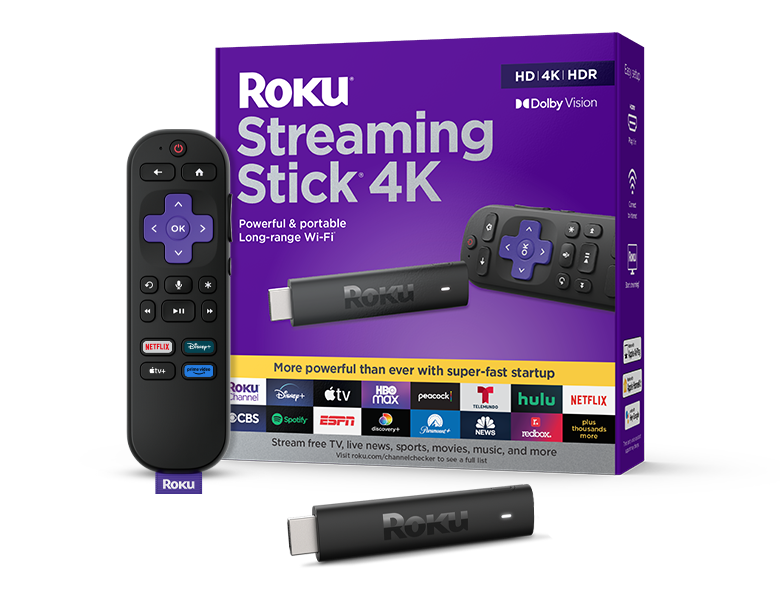




Our Take
If you came here looking for a $50 streamer and you're not deep in the Apple ecosystem, just buy this one. After 22 years of installing every streaming device on the market, the Roku Streaming Stick 4K is the box I recommend 7 or 8 times out of 10. The other two times, the client is already living in Apple's world or specifically wants the premium feel — and that's a fair reason to spend more. For everyone else, this is the box that does the job.
The reason it's my default pick comes down to two things. First, the math works in a multi-TV house. Four Apple TVs run roughly $600. Four Roku Streaming Sticks 4K run about $160 on sale ($40 each) or $196 at full retail. When a client is cutting cable and outfitting bedrooms, kitchens, basements, and patios, that $400+ delta funds half a year of YouTube TV. Second, spend five minutes after install turning off the sponsored row, deleting the apps you don't use, and rearranging the home screen — and the Roku interface ends up cleaner and faster than stock Apple TV. Most people skip the cleanup and complain about Roku ads. I never do.
The Stick also solves a quiet problem I see in every old client home: a smart TV from 2019 that now feels like it's running through wet sand. Streaming apps update constantly, manufacturers prioritize Apple TV and Roku first, and older TVs get neglected until they're unusable. Plugging this in makes a five-year-old TV feel new again — without buying a new panel. That alone is worth $40.
When to buy it
You have three or more TVs and you're cutting cable. This is where the Roku Stick math goes nuclear. Three Sticks on sale ($40 each) plus one Ultra on the main TV is about $219. Four Apple TVs is about $600. That's roughly $380 saved — enough to cover the first four to six months of YouTube TV. For the average household, the Sticks deliver basically the same streaming experience in the secondary rooms.
Your smart TV has gone slow. If your TV is 3–5 years old and apps are taking forever to load, the manufacturer has stopped optimizing for it. The Roku Stick plugs in, takes ten minutes to set up, and your TV feels brand new again. Roku and Apple TV are the only two streamers the app developers actually care about — everything else (built-in smart TV apps included) is an afterthought.
You want the Roku interface without spending Ultra money. The Stick runs the same Roku OS as the $99 Ultra. Same voice search, same cross-app recommendations, same cable provider apps that actually work. Spend five minutes after setup turning off ads and reorganizing the home screen and you've got an interface that's genuinely clean. Most people skip that step — don't be most people.
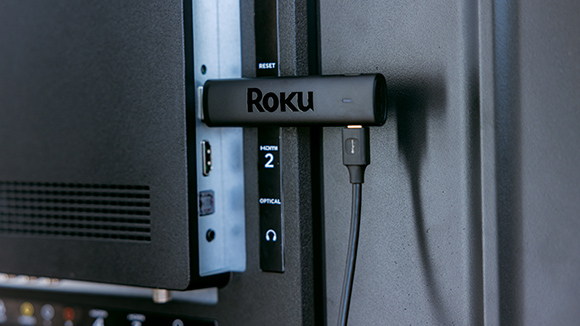
It's going on a secondary TV. Bedrooms, guest rooms, kids' rooms, kitchen, patio. The Stick is my go-to for any TV that doesn't get watched 4 hours a night. Same streaming experience as the Ultra, half the price, fits behind a wall-mounted TV with no clearance issues.
You want the cheapest legitimate path to Dolby Vision. The Stick supports Dolby Vision and HDR10+ — the two premium HDR formats Netflix and Disney+ keep advertising. Same picture quality as the Ultra, same as Apple TV. At $39 on sale, it's the cheapest 4K Dolby Vision streamer you can buy.
You travel and want a streamer in the suitcase. Plugs into any hotel TV, signs into your apps wherever you are. At $40, losing one in a hotel room isn't a tragedy. Apple TV is too expensive to risk in a bag.
When to skip it
You're deep in the Apple ecosystem. Pixel-perfect AirPlay from iPhones, HomeKit hub features, iCloud Photos on the TV, tighter integration with everything Apple makes. If your family runs on iPhones and you genuinely use that stuff, the Apple TV 4K is worth the premium. The honest warning that comes with it: the Apple Siri Remote is divisive — the touch clickpad is great for younger users and frustrating for older ones, and it falls into couch cushions constantly with no built-in finder.
Your Wi-Fi can't handle it. This is non-negotiable for any wireless streamer replacing a hardwired cable box. If your house is more than 1,500 square feet and you don't already have mesh Wi-Fi, fix that before adding streaming sticks. A weak network turns every streaming device into a buffering disaster — and it's not the Stick's fault. Eero, Orbi, TP-Link Deco, doesn't matter which brand. Just make sure every TV location has solid signal before you cut cable.
It's your main family-room TV and budget isn't tight. If you're spending three hours a night on this TV and you can afford the $40 step up to the Roku Ultra, take it. The Voice Remote Pro 2 — headphone jack, backlit buttons, lost-remote finder, USB-C rechargeable — is genuinely the best streaming remote made. The Stick's basic remote is fine. The Ultra's remote is the reason people stay loyal to Roku for ten years.
You're already a Fire TV household. I'm not a fan of Fire TV — the interface fights the user, constantly pushes Amazon content, and the remote feels cheap. But if you're already deep in Alexa and Prime Video, switching to Roku means re-learning a new interface and giving up the integrations you actually use. Stay where you are unless something specifically pushes you to leave.
Key features (and what they actually mean for you)
Same Roku OS as the Ultra — that's the real product
The Streaming Stick 4K runs the same interface as every other Roku, including the $99 Ultra. Voice search across every app you have installed. Tile-based home screen you can rearrange. The Roku Channel (Roku's free ad-supported channel) and major streaming apps all pre-installed.
🎯 Why this matters: Roku is software, not hardware. The interface is the product. Whether you spend $40 or $99, you get the same OS, the same voice search, the same cross-app recommendations. The cheaper boxes don't run a cut-down version of Roku — they run all of it. The cost difference is in the remote, the radio chips, and the build quality.
Dolby Vision + HDR10+ — every premium HDR format
The Stick supports both major HDR standards. Most streaming sticks at this price pick one or skip HDR entirely.
🎬 In plain English: HDR is the "premium picture" upgrade Netflix and Disney+ keep advertising. Dolby Vision and HDR10+ are competing formats — most cheap streamers support one, the Stick supports both. Whatever your shows are filmed in, you get the better-looking version automatically. Same picture quality as the Ultra and the Apple TV.
Dolby Atmos passthrough to your soundbar
The Stick sends Dolby Atmos audio to a capable soundbar or AVR without trying to process it itself.
🔊 In plain English: Atmos is surround sound that includes overhead audio — helicopters fly above you, rain falls from the ceiling. "Passthrough" means the Stick hands the raw signal to your soundbar to handle properly. That's what you want. Cheaper sticks sometimes strip Atmos out and downmix to stereo — this one doesn't.
Long-range Wi-Fi receiver in the stick
The Stick has a longer-range Wi-Fi antenna than older Roku sticks, designed to work well even when the router is across the house.
📶 Why this matters: the stick's antenna is the same generation as the one in the Ultra. In a typical home where the router is a couple rooms away from the TV, signal strength holds up well. In a dense apartment building with lots of competing networks, this won't fix interference — but for normal homes it's solid.
Pre-installed shortcut buttons for the major apps
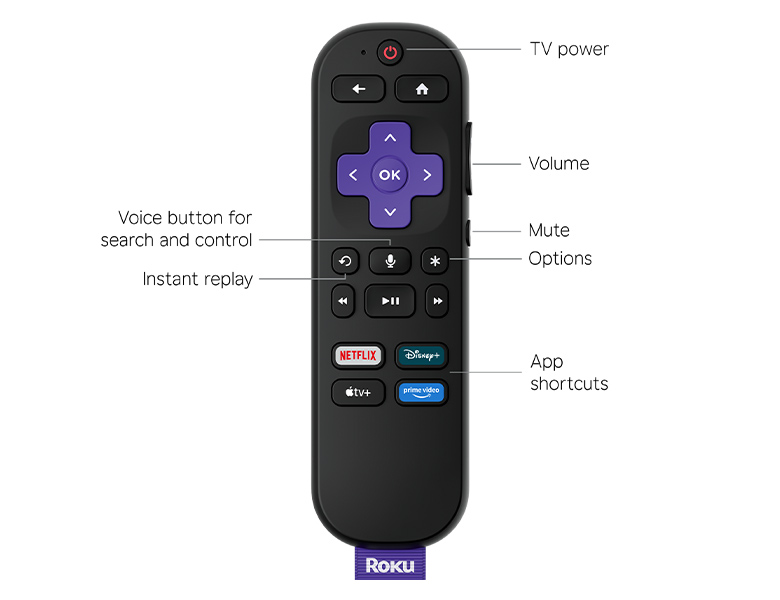
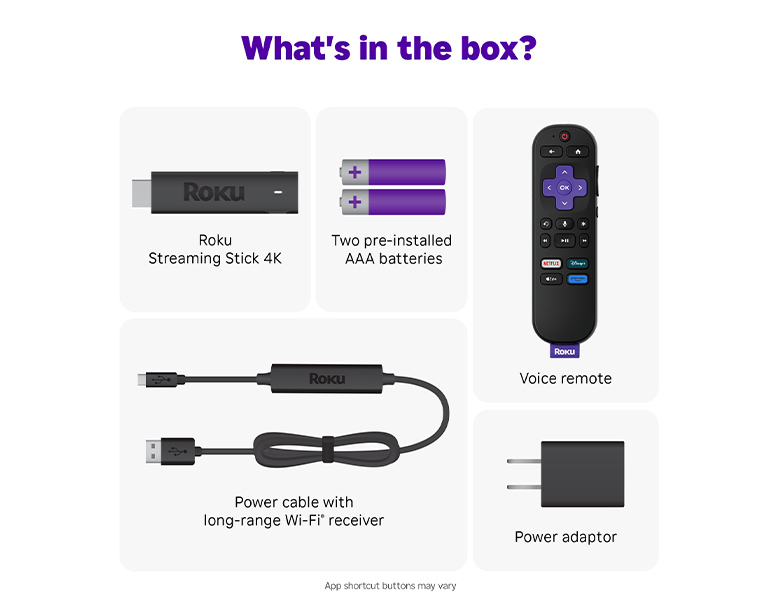
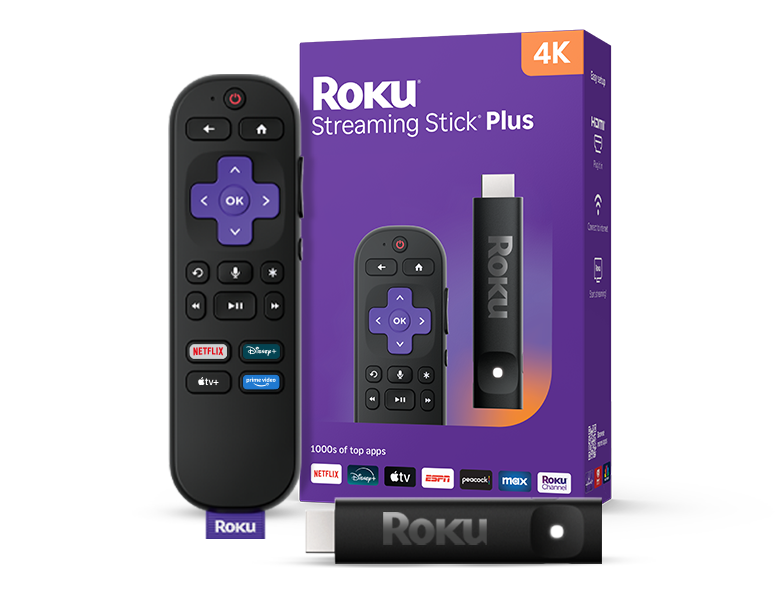
The remote has dedicated buttons for Netflix, Disney+, Hulu, and Apple TV — one tap launches the app directly.
🎮 What's actually useful: these aren't customizable on the basic Voice Remote (only the Voice Remote Pro lets you reassign them). But for households that use those specific apps daily, one-tap launches save real time. If you don't use one of the four pre-assigned services, those buttons are wasted on you — Ultra owners can reprogram theirs.
The Voice Remote — basic tier, and that's the trade
The Stick ships with the basic Voice Remote — not the Voice Remote Pro that comes with the Ultra. This is the budget remote in the Roku lineup, and the things it's missing are the things that matter once you start using a streamer every day.
It runs on two AA batteries (no rechargeable USB-C — that's a Voice Remote Pro feature), has voice search via the microphone button, dedicated app shortcut buttons (not customizable), and basic IR control of TV power and volume. It does the job. It does not feel like a premium product.
What you don't get vs. the Voice Remote Pro 2 that ships with the Ultra: headphone jack for private listening, lost-remote finder, backlit buttons that glow in a dark room, customizable shortcut buttons, USB-C rechargeable battery, hands-free "Hey Roku" voice. Those are the features that separate Roku's remote from every other streamer's remote — and they're all on the Pro 2, not the basic one.
| Remote feature | Voice Remote (basic) | Roku Voice Remote Pro 2 | Apple Siri Remote |
|---|---|---|---|
| Voice search across apps | ✓ Press to talk | ✓ "Hey Roku" hands-free | ✓ Siri (press to talk) |
| Headphone jack on remote | ✗ | ✓ | ✗ |
| Lost-remote finder | ✗ | ✓ | ✗ |
| Backlit buttons | ✗ | ✓ | ✗ |
| Customizable shortcut buttons | ✗ (4 fixed) | ✓ (2) | ✗ |
| Battery / charging | AA batteries (~6 mo) | Rechargeable USB-C | Built-in rechargeable, USB-C |
| Universal remote (controls TV) | ✓ via IR + CEC | ✓ Most TVs | ✓ Built-in IR + CEC |
The basic Voice Remote is fine on a secondary TV. On a primary TV — where you'll feel every missing feature every night — the Ultra's Voice Remote Pro 2 is the reason to spend the extra $40.
Closed captions, parental controls, and accessibility
Identical to the Ultra. Roku's accessibility suite is one of the better ones in streaming. Closed captions are fully customizable under Settings → Accessibility & Captions — font, size, color, background, opacity.
Audio descriptions are supported on every major app that ships them (Netflix, Disney+, Max, Apple TV+, etc.). A built-in screen reader announces menu items for low-vision users. Voice control via the remote helps with motor limitations.
Parental controls are PIN-locked under Settings → Parental Controls — block specific apps, restrict content ratings, lock down purchases. Same system as the Ultra, same effectiveness. For families with kids, the five-minute setup tour after install is worth doing once.
What's missing
Built-in Ethernet. Stick is Wi-Fi only. No port, no adapter included, no adapter sold by Roku separately. If your Wi-Fi is unreliable around the TV, this is a real problem. The Ultra ($40 more) has Ethernet built in.
Bluetooth remote-anywhere trick. The Ultra's remote uses Bluetooth, which means you can hide the Ultra completely behind closed cabinet doors and the remote still works. The Streaming Stick's remote uses standard wireless that wants line-of-sight to the stick. The stick is small enough this rarely matters — but you can't pull the cabinet-hidden install with this one.
A remote worth the upgrade money over a phone. The basic Voice Remote is functional but never makes you happy to pick it up. The Voice Remote Pro 2 that comes with the Ultra is the only streaming remote on the market I'd say is genuinely good. If remote-quality is a deciding factor, this isn't the device.
Wi-Fi 6E. The Stick is Wi-Fi 6 — same as the Ultra and the Apple TV. The Fire TV Stick 4K Max is the only streaming stick with Wi-Fi 6E at this price. In a dense apartment building with many neighbors on competing routers, Fire TV's 6E radio is genuinely the better signal — wired Ethernet (not available here) would solve it on Roku, but you'd need the Ultra for that.
Premium build. Plastic remote, plastic stick. The Apple TV's aluminum remote and the Ultra's heavier body both feel like more expensive products. For $40, this is fine — but it doesn't feel premium.
More photos
Ready to buy?
Price is the same at every retailer — pick whoever you already shop with. Free shipping at most.
Setup tips from a pro installer 8 tips · click to expand
- Run Roku's free Channel Pack first thing When you sign in, Roku offers a one-click bundle of the top free apps. Accept it — saves you the half hour of installing them individually later.
- Plug it into the side HDMI port if your TV has one Some wall-mounted TVs only have rear-pointing HDMI ports that fight the stick's profile. The side ports give you more clearance and don't bend the connector.
- Use the included HDMI extender if you need it If the stick won't fit cleanly behind your TV, the included short HDMI extension cable solves the clearance issue without sacrificing signal quality.
- Set audio output to 'Auto (Dolby Atmos)' Settings → Audio → HDMI → 'Auto (Dolby Atmos).' Default is sometimes set to Stereo, which wastes a Dolby Atmos soundbar entirely.
- Turn off the home-screen sponsored tile if it bothers you Settings → Home Screen → 'Move Featured Free row.' Won't fully remove it, but pushes it below the row of your installed apps so you see your stuff first.
- Pair the remote BEFORE turning the TV on the first time Press and hold the pairing button under the battery compartment for 5 seconds. Roku setup is smoother in this order than if you let the TV auto-detect.
- Enable Bandwidth Saver if your Wi-Fi is weak Settings → Network → Bandwidth Saver. Drops to 1080p on slow connections instead of buffering on 4K. Better-than-nothing fallback in a rough Wi-Fi spot.
- Add Apple TV+, Disney+, Max, and Netflix one time and they pre-load Once you sign in to the major apps, Roku pre-fetches the home screens so they open near-instantly. Worth doing the day you set it up — pays off every day after.